Overview & Setup Guide
Email marketing is one of the most effective ways to reach your audience and grow your business. But if your emails don’t look like they’re truly from your brand, they’re more likely to be flagged as spam or not even delivered at all. That’s why Freedomkit.ai lets you set up a dedicated sending domain — so your emails appear to come from your own brand domain and help protect your sender reputation.
Note: Dedicated sending domains apply only to users who are sending emails through the Freedomkit Email system.
What Is a Dedicated Sending Domain?
A dedicated sending domain is a domain or subdomain that you control and authorize Freedomkit.ai to use when sending your emails. Instead of showing generic or shared sending domains (like mg.msgsndr.org), your messages will show as coming directly from your business domain (e.g., news.yourbrand.com), which makes your brand appear more authentic and trustworthy to email providers.
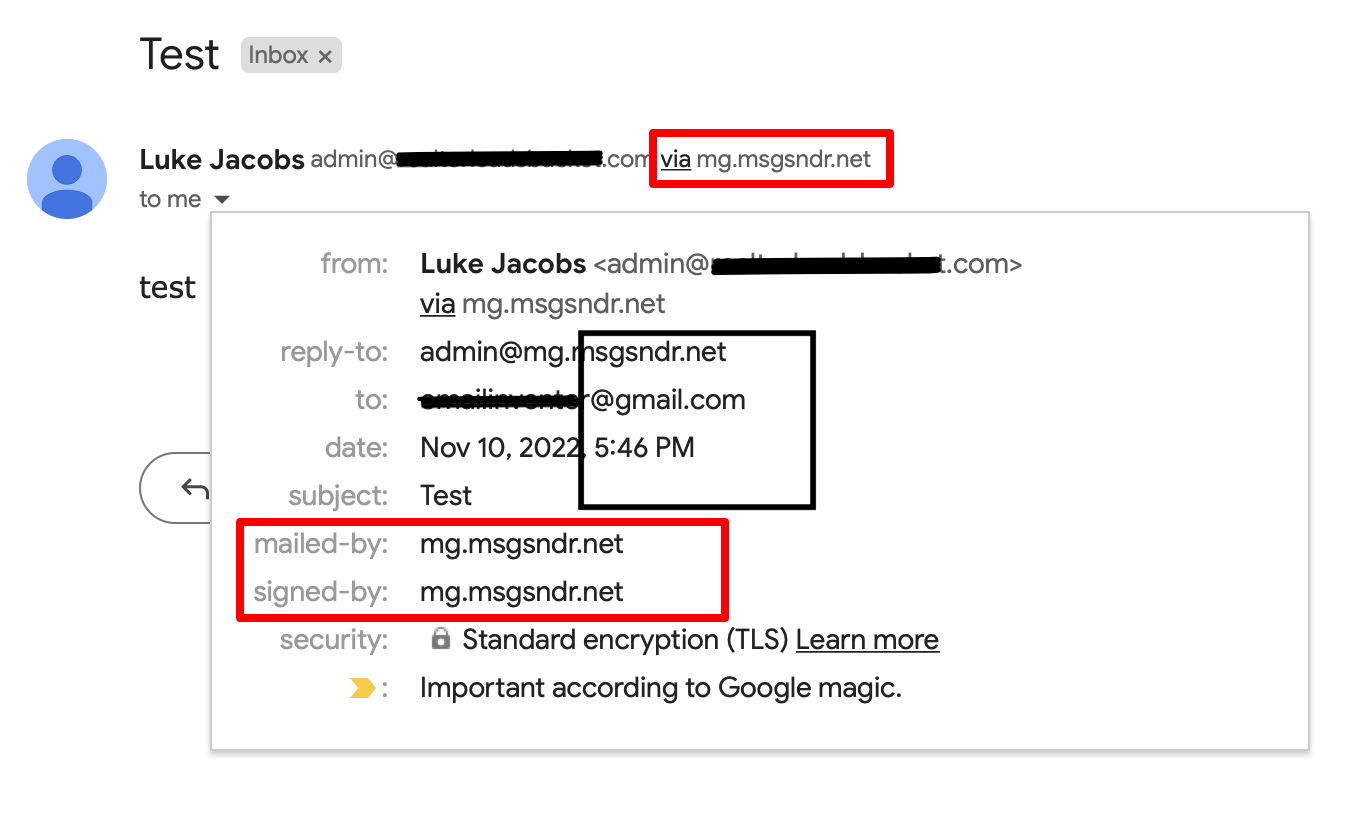
Without a dedicated sending domain:
Emails sent from the platform may show the Freedomkit sending infrastructure in headers (like sent via or mailed-by).
This can sometimes negatively impact deliverability or brand recognition.
With a dedicated domain:
Your email headers, SPF/DKIM alignment, and authentication signals all point to your brand.
Your deliverability and inbox placement typically improve.
Benefits of Using a Dedicated Sending Domain
Why set one up?
✔ Builds stronger brand trust with email recipients
✔ Improves email deliverability and reduces spam filtering
✔ Gives you full control over DNS and authentication settings
✔ Lets you warm up your domain for higher sending reputation
✔ Lets you send different types of emails from specific subdomains (optional)
Freedomkit.ai — Step-by-Step Setup
1️⃣ Choose a Domain or Subdomain
A subdomain is recommended (like mg.yourbrand.com) because it can be dedicated to email sending and separate from your main website. This avoids conflicts with other services that use your root domain.
👉 Example:
Type | Domain used for email |
|---|---|
Preferred |
|
Alternative |
|
2️⃣ Open Freedomkit Email Settings
Inside your Freedomkit.ai dashboard:
Go to Settings
Select Email Services
Click Dedicated Domain
Click Add Domain
3️⃣ Add Domain Details
Enter your chosen subdomain and save. Freedomkit will generate DNS records (like SPF, DKIM, and possibly DMARC) that you must add in your domain provider’s DNS manager.
Common domain hosts:
Cloudflare
GoDaddy
Google Domains
Namecheap
AWS Route 53
Hostinger
(Your provider may look slightly different — but the process is similar across most DNS dashboards.)
4️⃣ Update DNS Records on Your Domain Registrar
In your domain registrar (where you bought your domain):
Add the DNS records provided by Freedomkit
Save and publish changes
Wait for DNS propagation — this can take up to 24 hours
5️⃣ Verify and Activate
Once the DNS records are live and verified by Freedomkit:
✔ Your dedicated email domain will be activated
✔ You can now send emails that truly come from your brand domain
After Setup — Best Practices
Warm Up Your Domain
If your domain is brand new or has never sent email before, you should warm it up gradually by sending emails in smaller batches over time. This helps build a strong sender reputation.
Check SPF, DKIM, and DMARC
Proper authentication protects your domain and increases deliverability. Make sure these DNS records are correctly published.
Frequently Asked Questions
Q: Do I have to use a subdomain?
It’s recommended to use a subdomain for email to avoid conflicts with your main website’s mail systems and keep things clean.
Q: How long does DNS propagation take?
DNS changes usually take a few minutes up to 24 hours, depending on your domain host.
Q: What happens if I don’t set this up?
Freedomkit will send emails using shared sending domains — but this might reduce brand recognition and deliverability compared to using your own branded sending domain.